
Live visuals from sound, in your pocket.
SToV Pro Live turns your iPhone into a visual instrument: reactive visuals that move with the microphone, a USB-C audio interface or a song, shown on the phone or thrown to a big screen. Try it free first: SToV Live runs the same visuals in any phone's browser, with nothing to install.
SToV Live Free
In your phone's browser, at soundtovision.com/live.php.
- The library's reactive visuals, full screen
- The microphone, a song from your phone, or a demo track
- Layers of visuals, text, photos and videos, with filters
- Saves a .stov to carry on in the app, the editor or SToV-Pro
SToV Pro Live iPhone
Everything in SToV Live, made for performing.
- USB-C audio interfaces and mixers, every channel, with gain and meters
- Scenes that loop, and MIDI control with Learn
- Every setting of a clip, sideways (Build, Properties, Audio Signal, MIDI)
- AirPlay or a cable to a projector or TV; record to Photos
- Opens projects made in the editor and SToV-Pro, and links and QR codes
- Up to three reactive visuals at once, and your own, from the Reactive Editor
SToV Live
Open soundtovision.com/live.php on your phone, choose the sound, and the visuals start moving.
Choose Listen with the microphone, Play a song from my phone or Play a demo track. Nothing you hear is recorded or sent: the sound is only listened to on your phone.
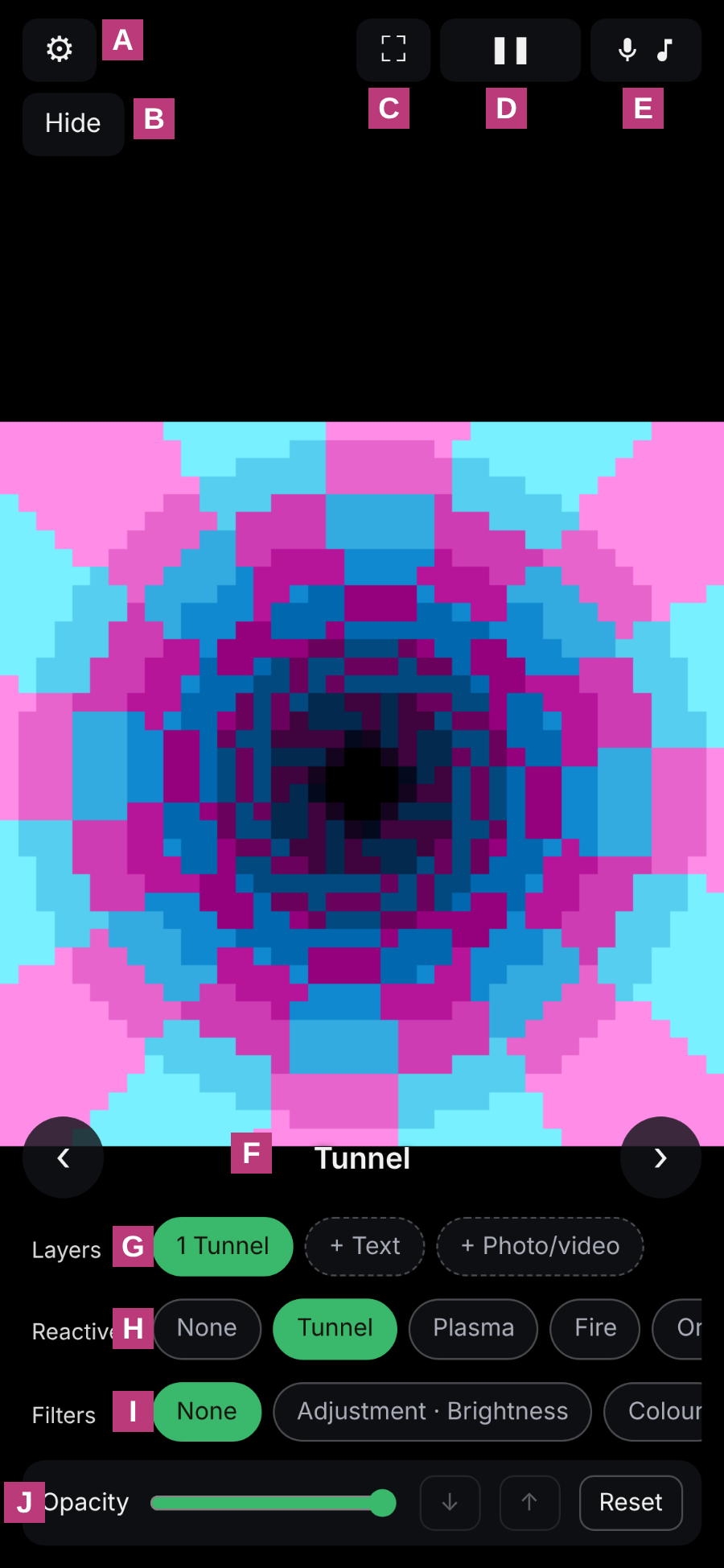
- ASettings: the project's colours, and save the page as a .stov for SToV Pro Live, the editor and SToV-Pro.
- BHide: keeps the controls out of the way while you pinch layers to size and place them. Tapping the screen hides them too.
- CFull screen.
- DPause and play.
- EThe sound: the microphone, a song, or the demo track.
- FThe selected layer's visual; ‹ and › step through them.
- GLayers, top first: add text, or a photo or video.
- HReactive: the visual the selected layer shows.
- IFilters: tap to turn one on; the selected one's Amount and React to music appear below.
- JThe selected layer's opacity, order (↓ ↑) and Reset (back to where it started).
The stage and its controls
SToV Pro Live opens on the stage, with the same layers, visuals and filters as SToV Live, and more for performing.
Pinch a layer with two fingers to size and move it. Hide All keeps the controls out of the way while you do; Show Controls brings them back.
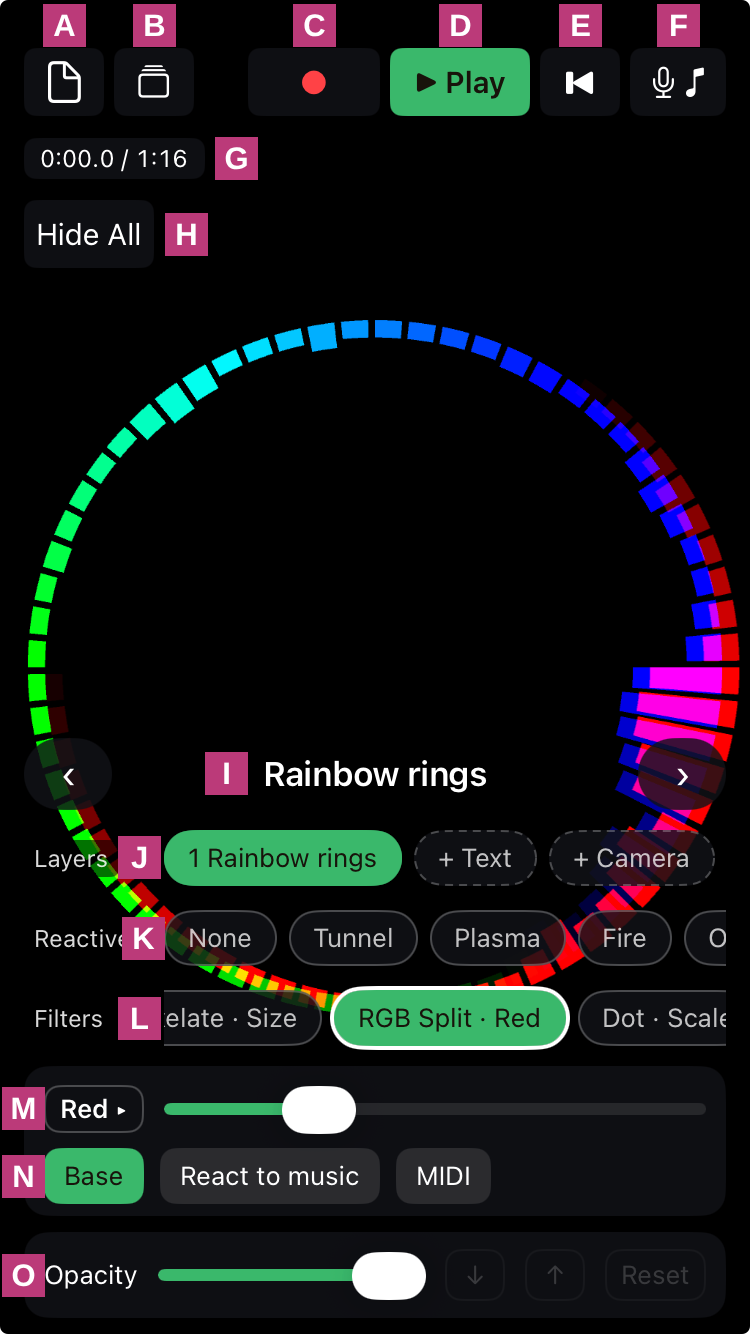
- AThe project: a new portrait or landscape page, its colour, and import or export a .stov.
- BScenes: the parts of the performance, and their looping (below).
- CRecord: the scene and its sound, saved to Photos when you stop.
- DPlay and pause.
- EBack to the scene's start.
- FSound: what the visuals move with (below).
- GWhere the timeline is, and its length: tap to go to a time.
- HHide All: the controls out of the way.
- IThe selected layer's visual; ‹ and › step through them.
- JLayers, top first: add a reactive visual (up to three), text (up to three), the camera, or a photo or video.
- KReactive: the visual the selected layer shows.
- LFilters: tap to turn one on; the ringed one is the one being set.
- MThe setting the slider moves (tap for the filter's next one, when it has more).
- NWhat the slider sets: Base, its own value; React to music, how far the music moves it; MIDI, how far a key or knob moves it (tap to learn one).
- OThe selected layer's opacity, order (↓ ↑) and Reset (back to where it started).
Songs, the microphone and USB-C audio
Tap the sound button (F above) to choose what the visuals move with. The one in use is shown in green.
Play a song from Files or the demo track, or choose Use Microphone/Line In to listen to the phone's microphone, or to a USB-C audio interface or mixer plugged into it (the newest input is used). Other apps keep playing while the app listens, so a synth or music app on the same phone can drive the visuals.
Line In/Microphone Settings opens halfway up the screen and drags up to full height, upright or sideways.
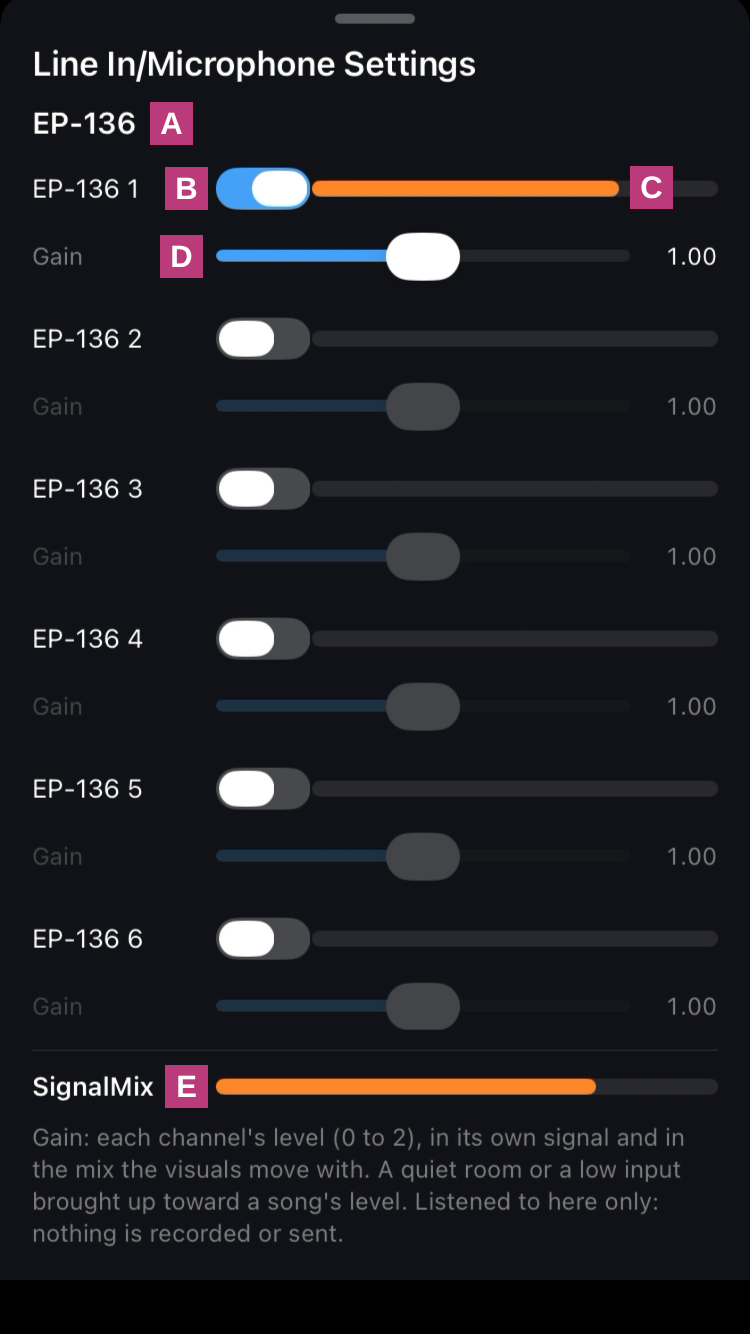
- AThe input listened to, as the phone names it.
- BEach of its channels, switched on or off.
- CThe channel's level, as it plays.
- DIts gain (0 to 2): a quiet room or a low input brought up toward a song's level.
- ESignalMix: the mix of the channels switched on, which the visuals move with.
Each channel is also a signal of its own, so one setting can follow the kick drum's channel and another the vocal's. Nothing is recorded or sent: the sound is listened to on the phone only.
Every setting, sideways
Turn the phone sideways and tap Show Advanced: every setting of the selected layer, beside the stage.
Choose a setting from the row at the top of the panel: the visual's own (its Build settings), its filters', or the layer's place, size, rotation and opacity (Properties). Each one has a base, and can move with the sound, with MIDI, or both, as in the editor.
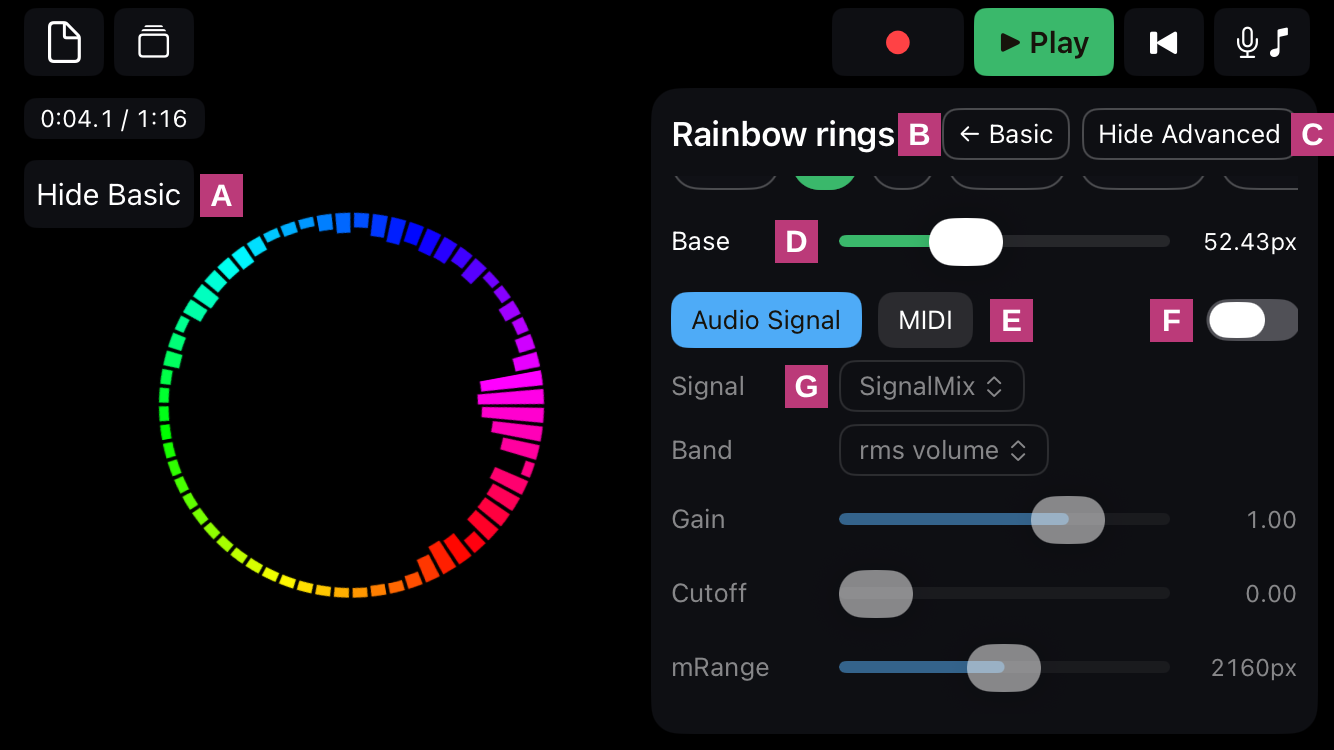
- AHide Basic: the stage alone on the left (Show Basic brings the controls back).
- BBasic: the basic controls moved into this panel, or back to the left.
- CHide Advanced: this panel put away.
- DThe setting's base value.
- EWhat it moves with: Audio Signal or MIDI.
- FThat motion switched on or off.
- GHow: the signal (SignalMix, or one channel of the input), its band, gain, cutoff and range (mRange: how far it can move the setting).
How a setting moves with the sound
The signal is a number from 0 (silence) to 1 (as loud as it gets), worked out many times a second. While it's above the Cutoff, the setting moves away from its Base by:
Base + signal × Gain × mRange
- Signal
- SignalMix is everything the visuals hear: the song, or the input's channels switched on, mixed. With a USB-C interface each channel is also offered on its own (named as the phone names it), so one setting can follow the drums' channel and another the vocal's. A project's Generated signals (made in the editor's Signal Editor: a sine, a pulse, an envelope…) can drive a setting too, in time with the timeline rather than the sound.
- Band
- Which part of the sound, and how it's measured. The parts: bass (up to about 260 Hz: kick drum, bass), mid (about 260 Hz to 4 kHz: voices, guitars, snare) and treble (above about 4 kHz: hi-hats, cymbals, air), or volume, all of it. The measures:
- rms: loudness as you hear it, weighted toward the frequencies ears are most sensitive to. Smooth, and follows how loud the music feels. rms volume is a good first choice.
- max: the loudest frequency in the part. It jumps on every hit, so it suits sharp, punchy movement.
- int (integrated): the average energy across the part. Steadier than max, busier than rms.
- Trigger int: on or off: full when the music is loud enough, nothing otherwise. For flashes and cuts.
- Gain
- How strongly it follows the signal, from −2 to 2. 1 is as measured; 0.5 half as much; a negative gain moves the setting the other way (smaller, darker, left…) as the music gets louder.
- Cutoff
- A threshold from 0 to 1: below it the setting stays at its base, so quiet passages, room noise or a hum don't move anything. Raise it until only the beats you want get through. Above it, the whole signal counts, so a higher cutoff makes the movement snap on rather than swell.
- mRange
- The most the music can move the setting, in its own units (pixels, degrees, a filter's amount…): at full signal and a gain of 1, the setting reaches Base + mRange.
A worked example: a layer's width with a Base of 200 px, max bass, Gain 1, Cutoff 0.3 and mRange 400 px. Between kicks (bass below 0.3) it stays 200 px wide; a kick at 0.8 makes it 200 + 0.8 × 1 × 400 = 520 px.
MIDI makes the same setting follow a keyboard, pad or controller connected to the phone.
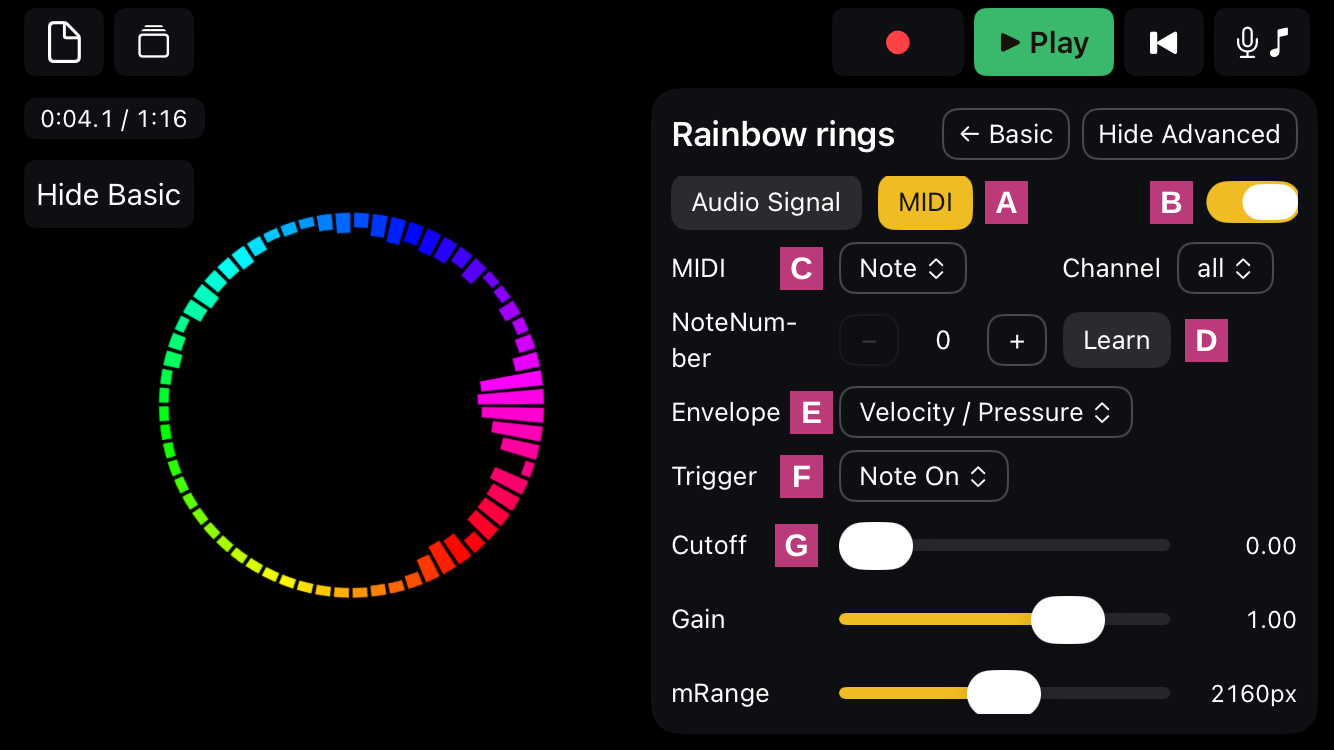
- AMIDI: the setting moving with a key, pad or knob.
- BMIDI's motion switched on or off.
- CA Note or a CC (a knob or fader), and its channel (all, or one).
- DWhich note or control: set the number, or tap Learn and play it.
- EEnvelope: what a press does, its velocity or pressure as played, or one of the project's generated signals.
- FTrigger: what starts it: Note On, Note Off, or Gated (held while the key is down).
- GIts cutoff, gain and range, as for the sound (below).
How a setting moves with MIDI
MIDI works the same way: a value from 0 to 1, multiplied by Gain and mRange and added to the base.
- Note or CC
- A Note follows a key or pad; a CC (control change) follows a knob, fader or pedal, from 0 at one end to 1 at the other. Channel: all, or only messages on one MIDI channel, so two controllers can be kept apart.
- Envelope
- What a note does. Velocity / Pressure: how hard it's played, held for as long as the key is down (and following its pressure, on a controller that sends it). Or one of the project's Generated signals, played from the press: an attack and decay you shape in the editor, the same every time, so a pad can fire a pulse or a sweep.
- Trigger
- For a generated envelope, what starts it: Note On (pressing the key), Note Off (letting go), or Gated (it plays only while the key is held, and stops when it's let go).
- Cutoff
- Notes played more softly than it are ignored, so a light touch doesn't set anything off. For Velocity / Pressure, the value has to be above it to count.
- Gain and mRange
- As for the sound: how strongly, and how far at most.
A setting can move with the sound and with MIDI at once: the two are added together. In the basic controls, React to music and MIDI under a filter's slider set the same Gain for each, in fewer taps.
Scenes and looping
A performance in parts: each scene has its own layers and its own stretch of the song.
In Scenes (B above), add a New scene… and set where each one starts and ends. Looping… sets how each scene repeats: for ever, or a number of times (0 plays it once and on into the next), and whether the whole project goes back to its start at the end of the timeline or stops. A program change or a MIDI note from a controller can go straight to a scene: choose one, or tap Learn and send it.
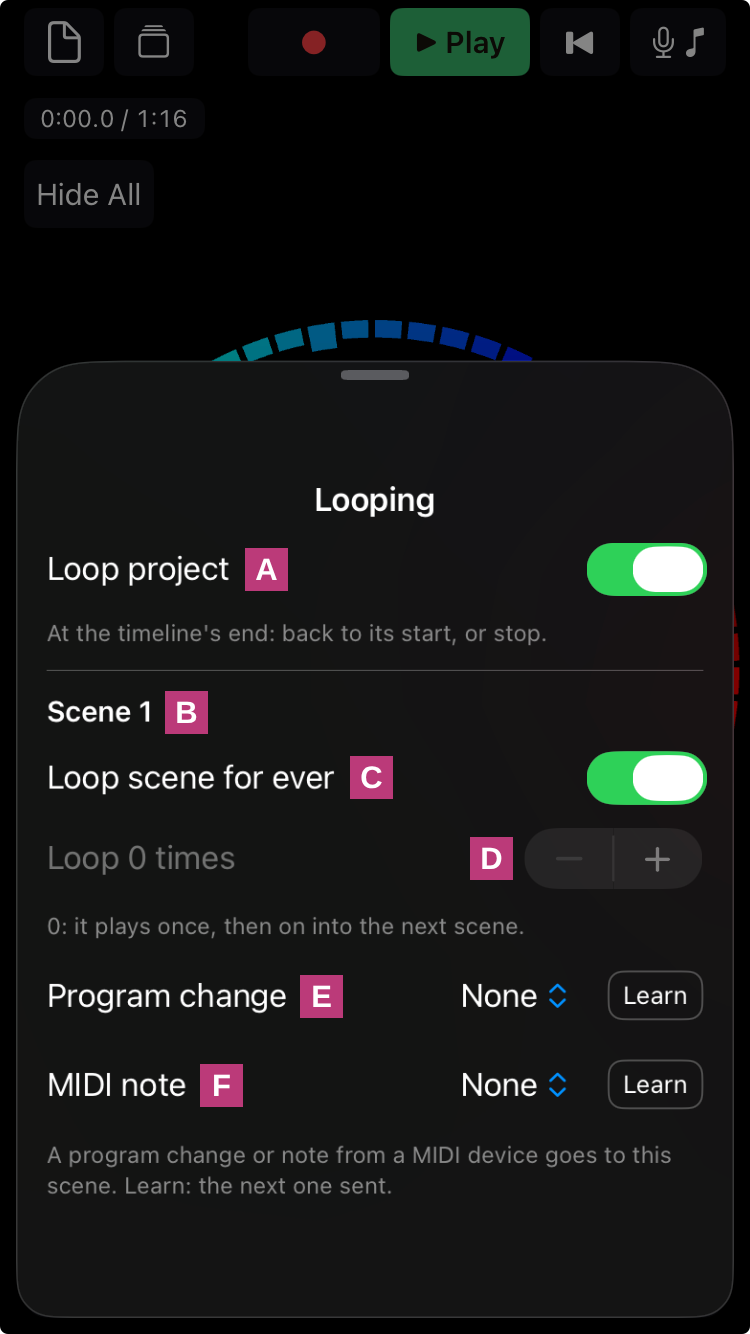
- ALoop project: at the timeline's end, back to its start; off, it stops.
- BThe scene being set (each scene has its own).
- CLoop scene for ever: it repeats until you move on.
- DOr a number of times; 0 plays it once, then on into the next scene.
- EA program change from a MIDI device that goes to this scene: choose one, or tap Learn and send it.
- FOr a MIDI note that goes to it, chosen or learnt the same way.
On a projector or TV
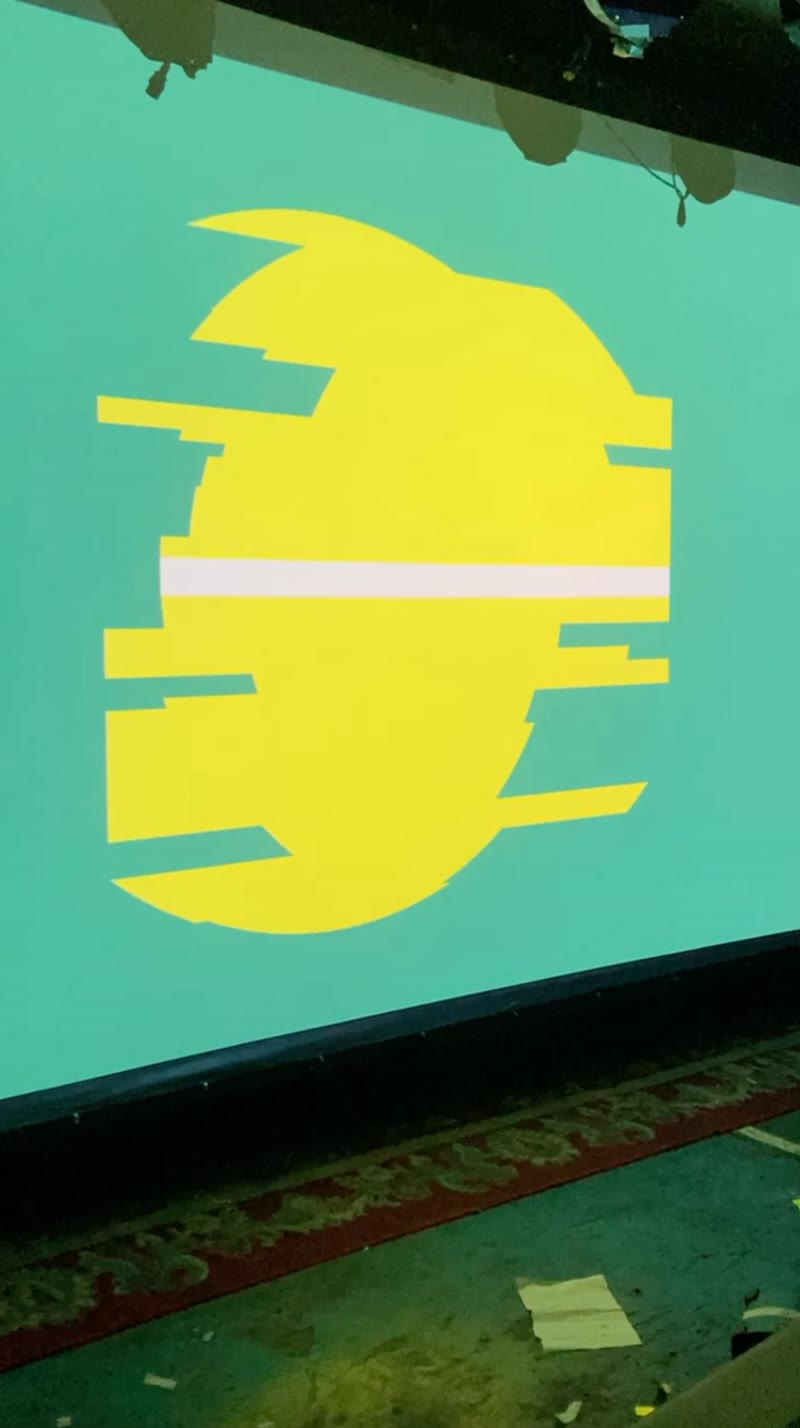
Connect a screen with AirPlay or a cable, and the scene fills it on its own.
Use Screen Mirroring in Control Centre (AirPlay), or a USB-C to HDMI adapter. The projector or TV shows the scene alone, without the controls; the phone keeps the controls and its own view, so you can perform from it while the audience sees only the visuals.
From the editor and SToV-Pro
Build a scene on a computer, then perform it on your phone.
A project saved as a .stov — from the project editor, from SToV-Pro, or from SToV Live — opens in the app from Files, AirDrop or Project settings / Export › Import a .stov…. It plays as it was made. To tune a clip on the phone, switch on Live below its thumbnail in the editor before saving; give it a nickname there to find it easily.
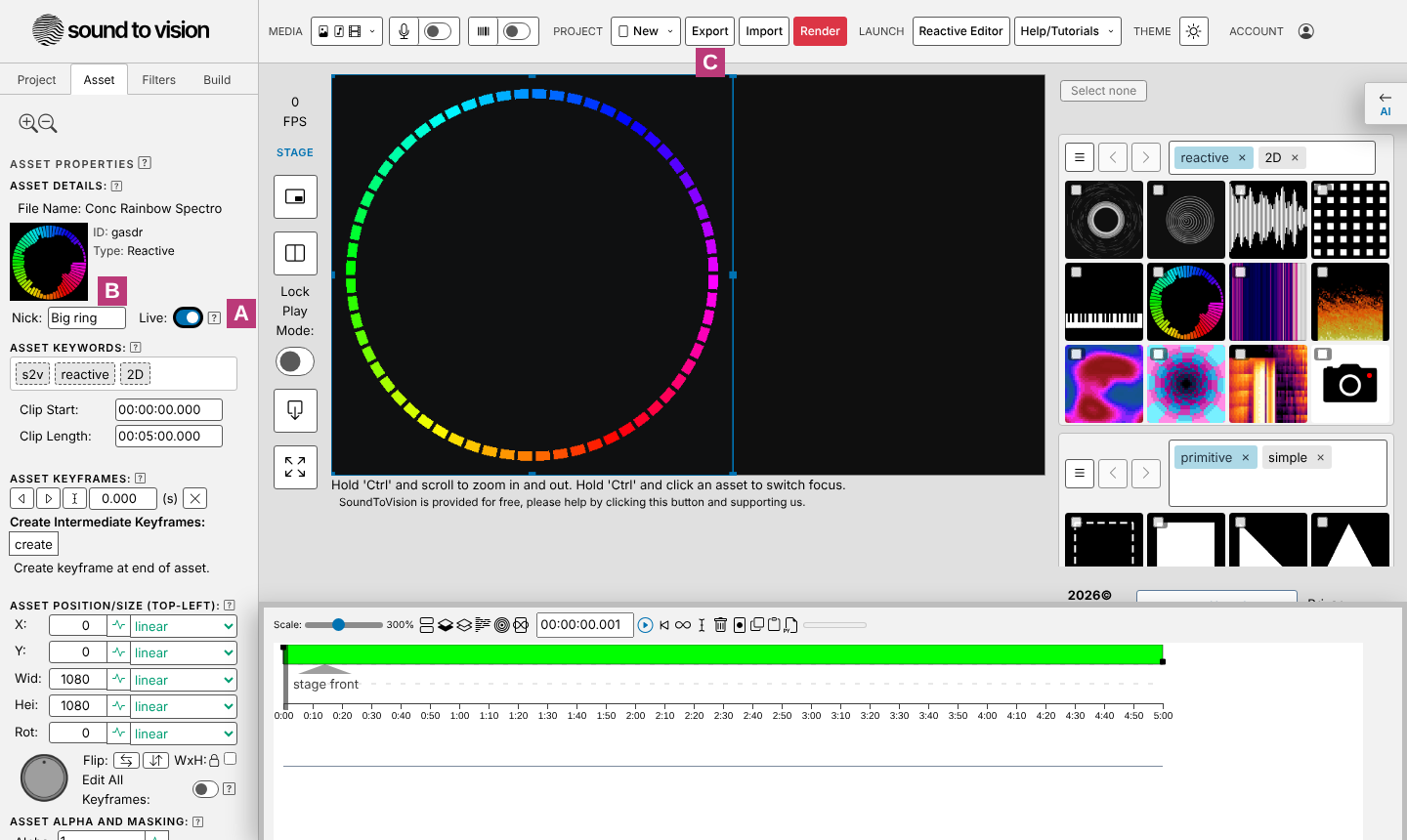
- ALive, below the selected clip's thumbnail: switched on, the clip can be tuned in SToV Pro Live (its filters, and its place, size, rotation and opacity), sideways in All settings. Off, it plays as it was made.
- BNick: a nickname, the name the clip is shown by on the phone (and in the editor's mask menus). Blank, it's shown by its ID.
- CExport: saves the project as a .stov, to send to the phone (AirDrop, Files, or a link).
Your own visuals
A visual you make in the Reactive Editor can join the app's Reactive row, to use in any scene:
- In the Reactive Editor, press Export and give the visual a name. It saves as name.json.
- Send the file to your phone: AirDrop it, or save it to iCloud Drive.
- In the app, select a reactive layer and tap + From Files… at the end of the Reactive row. Choose the file, then Add.
A project can bring its own visuals too. When you open a .stov whose clips use visuals the app doesn't have, it asks whether to keep them: Keep them adds them to the Reactive row for other scenes, Not now leaves them in that project only (they play there either way). Your visuals are marked ✦ in the row; to remove one, press and hold its name.
Projects and visuals shared as a link or a QR code (soundtovision.com/p/… and /v/…) open straight in the app when it's installed, and in SToV Live when it isn't. Export as .stov… takes your changes back to the editor or SToV-Pro.
No account, no ads, no tracking
Neither SToV Live nor SToV Pro Live needs an account. The sound, the camera and MIDI are used on your phone only, and nothing is sent anywhere unless you choose to share it. The details are in the privacy policy.