
The same tools, a stronger engine.
SToV-Pro runs the full Sound to Vision toolset natively on Mac — every feature of the browser app, with the performance, audio quality and rendering speed only a desktop build allows.
Software Options
Sound to Vision is available in two editions — a Browser version you can use right now for free, and a Pro desktop application with native rendering, full file system access, and significantly better performance. Both editions support the optional AI Assistant, which lets you describe what you want and generate node scripts automatically.
Free
Supported by advertising
- No installation required
- Loads all types of media
- Video rendering via companion app
- Access to free asset library
- Real-time live performance
- MIDI support
- No offline access
- Media files limited to 2GB
- Projects must be exported and imported manually
£45 one-off payment
Own it permanently, no subscription · currently macOS only
- Everything in the Browser version
- Native rendering — faster and smoother
- Full hardware acceleration
- Full file system access
- Save and load projects natively
- Import large media files without limits
- Advanced processing pipeline
- Works fully offline
Coming Soon
Pricing to be announced
- Live performance on the go
- MIDI support
- Touch optimised interface
Describe what you want. Let AI build it.
The built-in AI assistant lets you describe your visual idea in plain language and generates a working node script automatically. It works in both the Browser and Pro editions.
- Available in browser and SToV-Pro
- Generates node scripts from plain language descriptions
- Pay only for what you use — no subscription required
- Top up your credits whenever you need them
Credits are used per request. Top up in packs — unused credits never expire.
Find Out MoreProject Editor
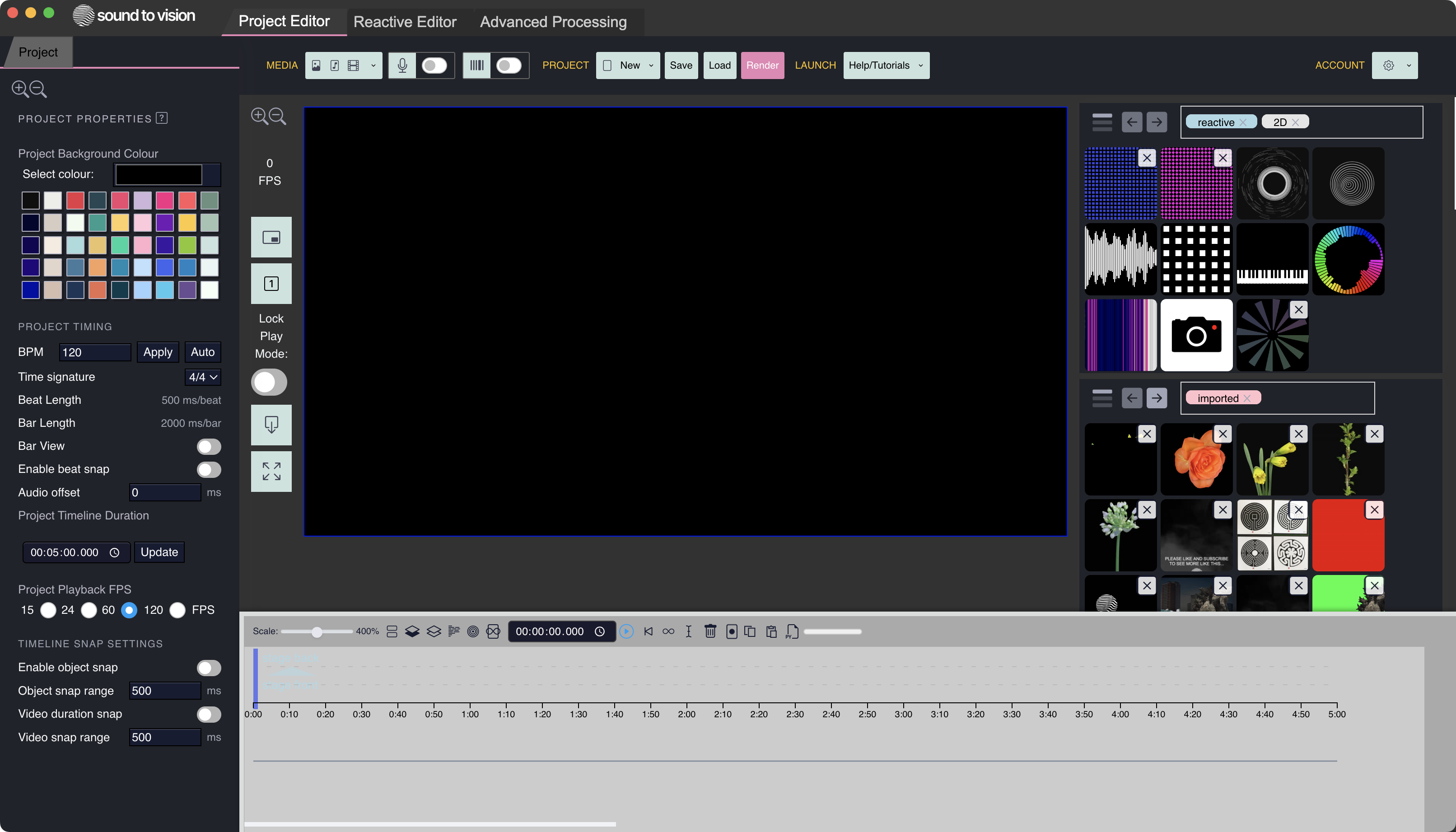
The main workspace, matching the browser app's layout and feel — driven underneath by a native Swift backend.
Complex projects stay responsive, and the same engine delivers higher-quality audio, much faster rendering and export to ProRes. With full file-system access, projects and media live wherever suits you — and you can record audio and MIDI straight into the timeline.
Reactive Editor
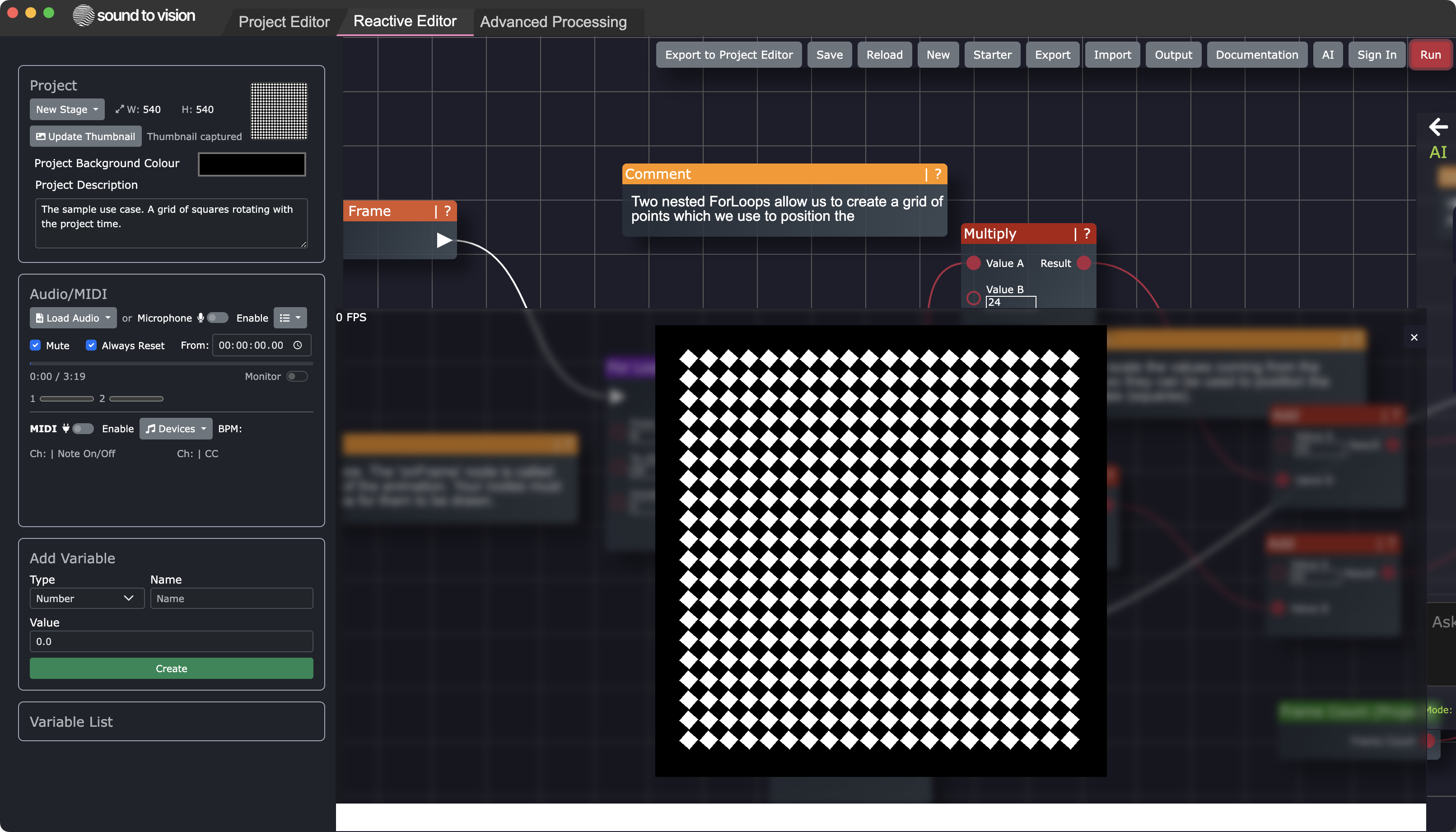
Where audio drives image - the heart of Sound to Vision's reactive approach.
The Reactive Editor defines how your visuals respond to sound. Its look and workflow are shared with the browser app, and the same native engine makes mapping faster and more responsive to work in.
Advanced Processing Pro only
Transform media into new assets with operations too heavy to run well in a browser.
Different methods are available depending on the asset — video, photo, stack or audio. This is where the native backend earns its place.
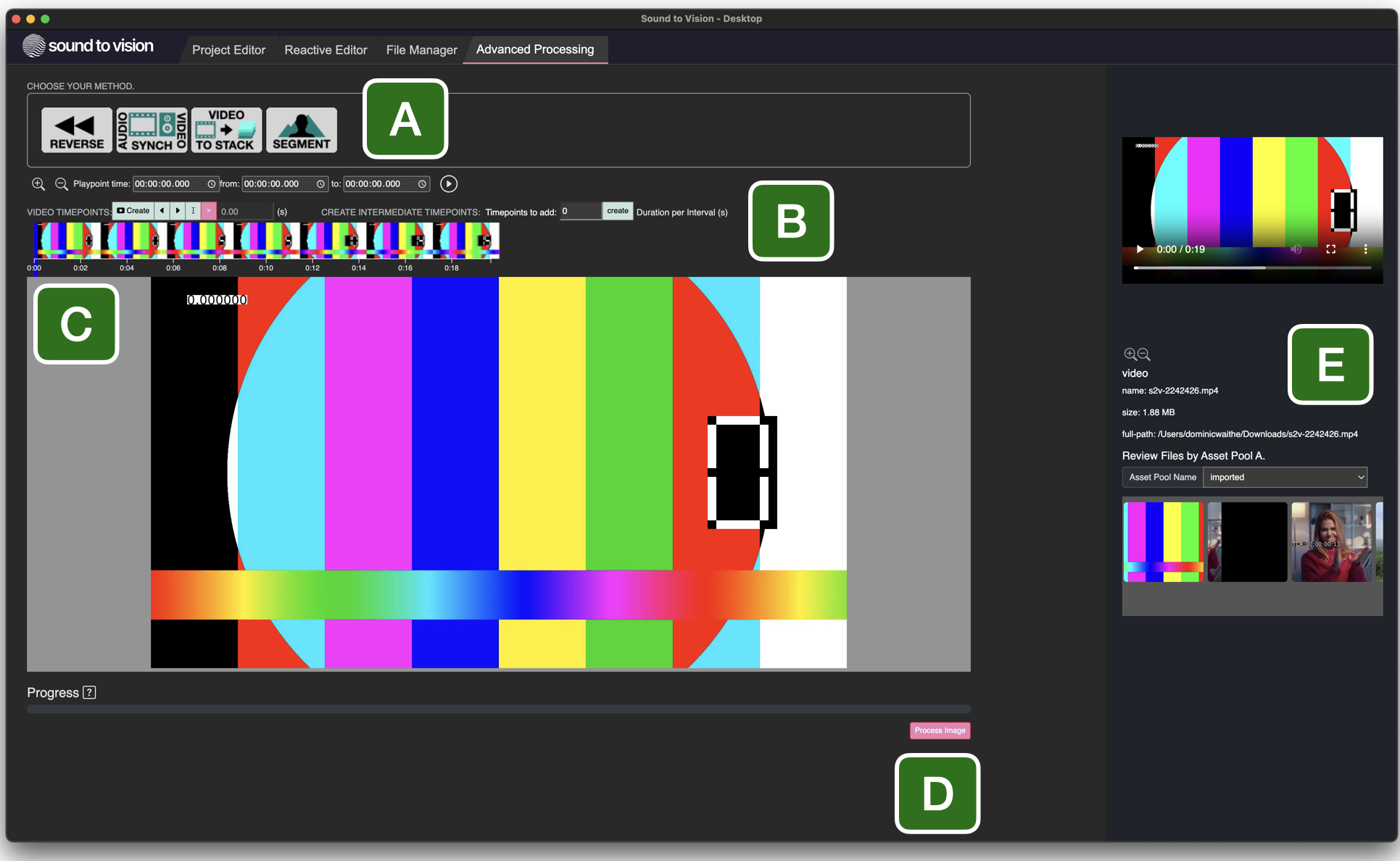
Select an asset from the preview pane, choose a method, set its parameters — guiding interactive methods like click segmentation directly in the preview — then Process. A progress bar tracks the run, and a Download appears when the new asset is ready.